442 views
owned this note
<style>
h3 {
border-bottom: 1px solid #ccc;
}
section {
margin-bottom: 2rem;
padding: 0em 1em;
padding-bottom: 1em;
border-radius: 4px;
background-color: #f7f7f7;
border: 1px solid #ccc;
}
summary {
font-weight: bolder;
}
summary:hover {
text-decoration: underline;
}
.todo {
color: #ff00ff;
border: 2px dashed #ff00ff;
padding: 0em 1em;
border-radius: 5px;
//display: none; // UNCOMMENT TO HIDE TODOs
}
</style>
# Lab 1 (CS17/111/112/19): Using Classes and Interfaces in Java (Fall 2025)
**The goals of this lab are to:** help you practice with implementing trees in Java
- Help you practice writing test cases in Java
- Help you practice writing class-interface diagrams
- Get you familiar with Javadocs, Java’s documentation system
- Make sure you are able to upload assignments for grading
## Getting Starter Files with GitHub
You can clone the starter files for this lab at this **[GitHub Classroom link](https://classroom.github.com/a/0WM3jnXI)**.
**[Look here for super-important instructions](https://docs.cs200.io/s/github-guide#Accepting-an-Assignment-on-GitHub-Classroom)** on how to accept the assignment and open the code in IntelliJ.
<!-- Refer to the [GitHub guide](https://docs.cs200.io/s/github-guide) if you are unfamiliar with it. Make sure you push your code regularly to back it up! -->
## Starting notes
- As you read through the code, you'll notice that there are several Javadoc comments (starting with `/**`) marked with `TODO` that ask you to fill stuff in. These are for the end of the lab, when we'll learn about how Javadoc can help document our code--**please ignore these TODOs until the tasks direct you to fill them in**.
- Toward the end of this lab is a [special tutorial on using **git**](#Task-10-Pushing-your-code-to-git), which is an essential software tool we'll use to submit assignments (and which will be useful for any real-life CS work). **When you have ~15min left in the lab, skip ahead and do this part if you haven't reached it already**--it's important you get practice with git, and we want you to do this in lab while TAs are around to answer questions!
## Before you get started ...
Work through the code illustration of interfaces at [this link](https://brown-csci0200.github.io/assets/lectures/03fp/demo/). It helps close a gap between where we got to in lecture on Monday and the rest of the lab.
## Back to Binary Search Trees!
Remember BSTs (binary search trees)? Well, get ready, because it’s time to revisit them! As a refresher, in a binary tree, every node has 0, 1, or 2 children. Here are functional programming data types for binary trees:
In ReasonML:
```reasonml
type tree ('a ) = Leaf | Node ('a, tree ('a ) , tree ('a ) )
```
In Pyret:
```
data BinTree:
| leaf
| node(value :: Number, left :: BinTree, right :: BinTree)
end
```
A binary _search_ tree has additional constraints on the order or structure of the nodes: for every node _p_, all the values in _p_’s left subtree are strictly less than the value of _p_, and all the values in _p_’s right subtree are greater than or equal to the value of _p_. In the example below, the blue circles represent the nodes and green circles represent the leaves.
In this lab, we will implement five methods on BSTs:
- `insert(int n)`, a method that inserts a value into the BST and returns the resulting IBST object.
- `contains(int n)`, a method that returns true if the given value is found in the BST, and false otherwise.
- `treeDepth()`, a method that returns the height of the longest branch in the tree
- `getLeft()`, a method that returns the left child of a Node / Leaf
- `getRight()`, a method that returns the right child of a Node / Leaf
### Task 1
Navigate to `src/IBST.java`. Declare these methods in the `IBST` interface provided in the stencil code.
:::warning
In most cases the `src` (source) folder should be left alone as source code, while the `sol` (solution) folder is modified.
Declaring interface methods here is for the sake of practice in lab!
:::
:::success
**Checkpoint!_:_** Call over a TA to check your work.
:::
## Implementing Methods
First, make _both_ the Node and Leaf classes implement IBST (Interface Binary-Search-Tree) by changing the class header:
Ln 5: `public class Leaf implements IBST {`
Ln 6: `public class Node implements IBST {`
`implements IBST` establishes the connection between the Leaf/Node Class and the Interface, reminding you to implement every method declared in the Interface (which acts as a template)
**Declare methods that were declared in IBST, in the Leaf & Node Class. We recommend starting with Leaf, and then moving onto Node**.
### Task 2
Write the `getLeft` and `getRight` methods that return the left and right child nodes, respectively.
What instance fields might be helpful for this? Declare them in the necessary class to help your implementation.
### Task 3
Write the method `treeDepth` that returns the height of the longest path down the tree. Consider counting paths/node levels to calculate the tree depth.
### Task 4
Write the method `contains` that takes an integer and returns a boolean indicating whether a node with that integer as its data is in the BST.
### Task 5
Write the method `insert` that takes an integer as its input, creates a new node with the integer as its data, and then inserts that node into the BST.
### Task 6
Navigate to the test file `BSTTest.java`. Using `insert`, build two different binary search trees using the numbers 1 through 6 (you’ll get different trees by adding the elements in different orders).
### Task 7
Develop a good set of tests for `contains`. The point here is to think about what combination of tree shapes and numbers cover the different cases of the algorithm. You can draw your trees on paper, indicating which numbers you would use for good `contains` tests. Write a short description of the situation that each tree/input is trying to test (e.g., we want to see your testing strategy, not just that you came up with some collection of examples.)
### Task 8
Develop tests for `treeDepth` in the same style as the `contains` tests.
:::success
**Checkpoint:** Call over a TA to check your work.
:::
## Javadocs
_Javadoc_ is a system that generates documents in the form of web pages from annotated Java code. That is, if you comment your Java code using Javadoc annotations, then you can use the Javadoc system to automatically generate web pages that document your program. In CS0200, you will not be required to use Javadoc for document generation, but you will be required to write your comments using standard Javadoc annotations.
## Javadoc Comments
The Java compiler recognizes comments delimited by `//` or `/* ... */`. Javadoc recognizes comments delimited like this: `/** ... */`. These comments are placed above the class, variable, or method about which you are writing a comment.
## Javadoc Tags
The keywords that are included in Javadoc annotations are called _tags_. Tags inform the Javadoc system of the type of information a comment contains. Below we list a few of the tags of interest in CS0200. To learn more about built-in tags, and how to make your own, check out the [Javadoc Documentation](http://www.oracle.com/technetwork/java/javase/documentation/index-137868.html) (Scroll down to the "Format of a Doc Comment" section to view an example).
- `@param`: Documents a specific parameter (argument) of a method or class constructor.
- `@return`: Documents the return value of a method.You should have a `@param` tag for each parameter passed into a method you write. Furthermore, you should have a `@return` tag for the return value of each method you write (unless it returns void).
Now, let’s put together everything you’ve learned about Javadocs! The GitHub data you pulled has a class called `SongOfThe2000s.java`. Modify that file to put appropriate Javadocs on the `SongOfThe2000s` class and its methods.The class represents a song from the 2000s and has private variables representing its name and listener count.
```java=
package sol;
// TODO: Write a Javadoc comment for this class
public class SongOfThe2000s {
private String name;
private double listenerCount;
// TODO: Write a Javadoc comment for this constructor
public SongOfThe2000s(String name, double listenerCount) {
this.name = name;
this.listenerCount = listenerCount;
}
// TODO: Write a Javadoc comment for this method
public String getName() {
return this.name;
}
// TODO: Write a Javadoc comment for this method
public double getListenerCount() {
return this.listenerCount;
}
}
```
### Task 9
Fully fill in the required Javadoc comments to `SongOfThe2000s` and the rest of your Java files (`Node`, `Leaf`, `IBST`).
:::info
**Hint:** In IntelliJ, if you type `/**` followed by enter (above an existing class, variable, or method declaration), IntelliJ will auto-generate some of the tags for you!
:::
:::success
**Checkpoint:** Huzzah! - You’ve finished the lab! Call over a TA to get checked off.
:::
### Task 10: Pushing your code to git
:::warning
**Note**: This task teaches you how to push your code to git, an important skill that you'll need for **every future assignment in this class, and every other CS course you may take**.
Even if you don't finish the rest of the lab, try this task before the end so that you can practice with git while a TA is present.
:::
When you started this lab, you cloned your code from a git repository: a git repo is a place to store your code and record a *history* of your changes. This *history* is important when you're working on a software project for a long period of time (so you can revert to old versions), or collaborating with others (for syncing updates between people). Git is a near-*universal* tool for software development (and we'll use it a lot in this class!), so in this lab we'll demonstrate some git operations to give you some practice.
To try using git, we're going to *commit* your current changes to the git history, then *push* them to your repository on GitHub so they're stored online. To do this:
#### Step 1: Your terminal
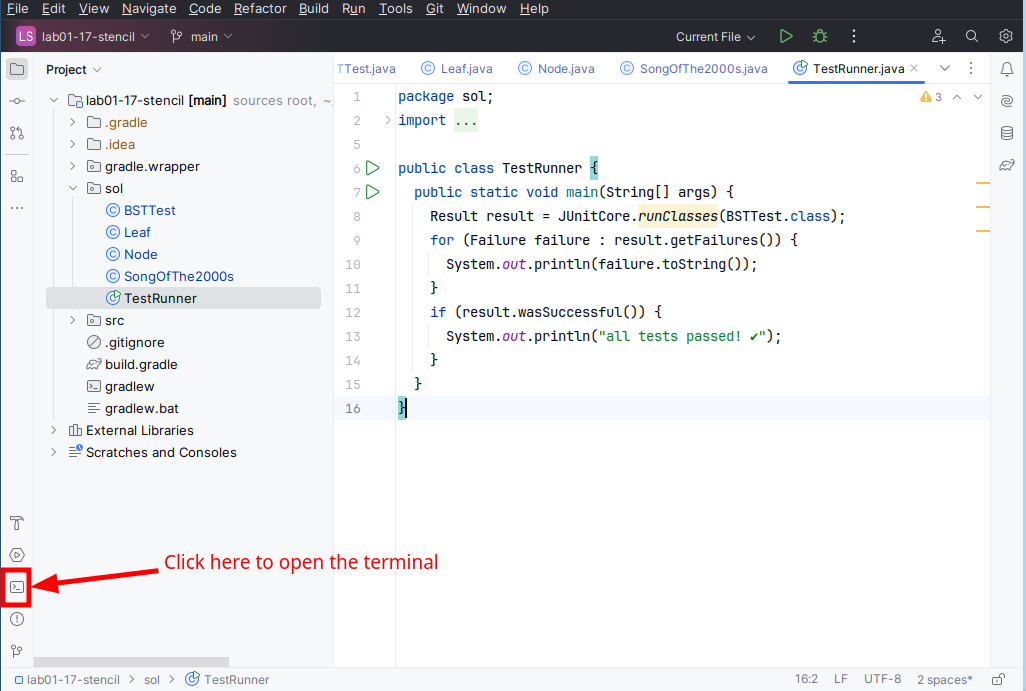
1. In IntelliJ, **open a terminal** by clicking on the terminal icon in the lower-left corner (see the figure for a reference)
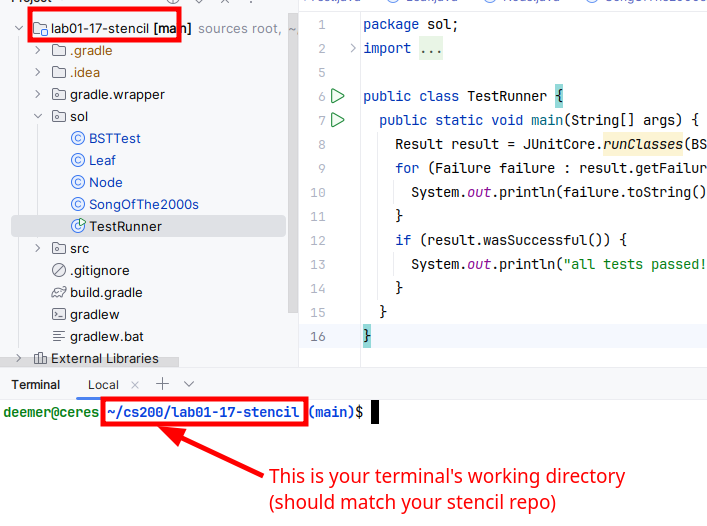
2. Take a look at your terminal's *prompt*: it should give the name of a directory (ie, a folder on your computer), like the figure below. **This is the terminal's *working directory***: which acts like a "reference point" when you run terminal commands. Before continuing, **check that your terminal's working directory points to the same directory as your stencil** (eg. something ending with `lab01-17-<yourusername>`). You'll see why this is important in the next step.
Now we're ready to start using git!
### Step 2: Seeing what changed
Before you commit your code (and potentially send it to others), it's a good idea to review your work to see what will go into the history. To do this:
3. In your terminal (which we'd now say is "located in your stencil directory"), run the following command:
```shell
git status
```
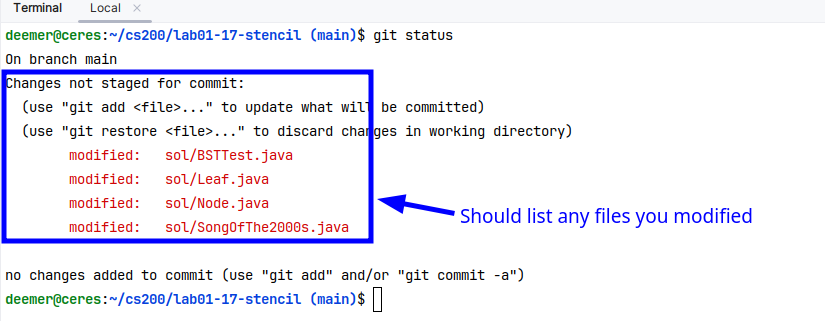
`git status` asks git to show you what files changed since the last *commit* (or, the latest version git knew about, which was when you cloned the repository). After working on the lab, you should see one or more files show up as "`Changes not staged for commit`" (for files that were in the stencil, but you changed) or "`Untracked files`" (for new files you created), like this:
:::info
**Note**: If you can't see all the output in your terminal, try making the window a bit larger.
:::
A few things to note here:
- The exact number of files will depend on how far you got in the lab--as long as one file shows as changed, you can continue.
- Look at the list of files: the list actually shows *paths* to files, relative to your working directory (ie, your stencil folder). For example `sol/BSTTtest.java` refers to `<stencil dir>/sol/BSTest.java`. This is why the working directory was important! You'll see this idea of *relative* file paths come up a lot in later assignments.
4. Because software projects can have a lot of files, we need to tell git which files you need to commit. This is called **staging your changes**. You can stage your changes using the command `git add`, like this (fill in each file that was changed, separated by spaces):
```shell
## Idea: git add <file1> <file2> ...
git add sol/BSTTest.java sol/Leaf.java <... other changed files ...>
```
5. After you run `git add`, you shouldn't see any output in your terminal (with many terminal commands, "no news is good news"). **To see what changed, run `git status` again**, which should look like this:
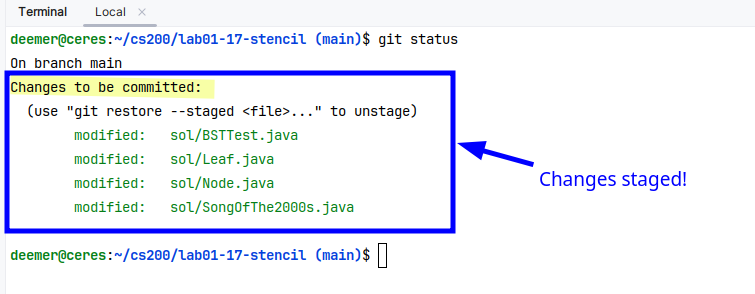
`git status` should now show your changes as **staged**: this means they're ready to be committed. If you continue changing your files after this, you'll need to stage/commit them again.
6. Now it's time to commit! (You got this!) To commit your changes, do the following:
```
## Idea: git commit -m "<some message about what you did>"
git commit -m "finished lab 1"
```
Committing your work **takes your staged changes and adds them to the history**: a git repository is actually a list of these changes! After committing, you should see a message summarizing the changes, like this:

:::info
**Note**: Sometimes, if you add an exclamation point/punctuation at the end, you'll see "dquote>" which you can fix by just adding another closing quotation mark and hitting enter! Single quotes around your commit message (git commit -m 'finished lab 1!') also avoid the issue.
:::
7. **Almost there**: now that you've committed your changes, you need to send them to your repository on Github: this is called **pushing your changes**. To push your code, run the following:
```
git push origin main
```
This tells git to send your changes to the location where you cloned the repository (called `origin` by default) on the `main` branch. The details of these aren't important now, but if all goes well you should see output like the following, denoting that the push was successful:
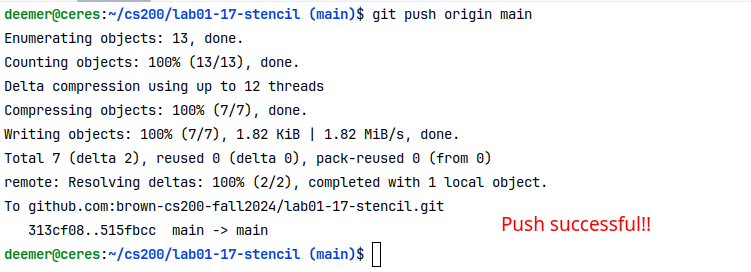
Yay, your changes are now on Github!
8. To see your changes online, **open up your stencil repository on Github** (if you can't remember the link, go here and look in the "Repositories" view). You should see the viewer show your latest commit message (like the figure), and if you browse around you should see your latest files!
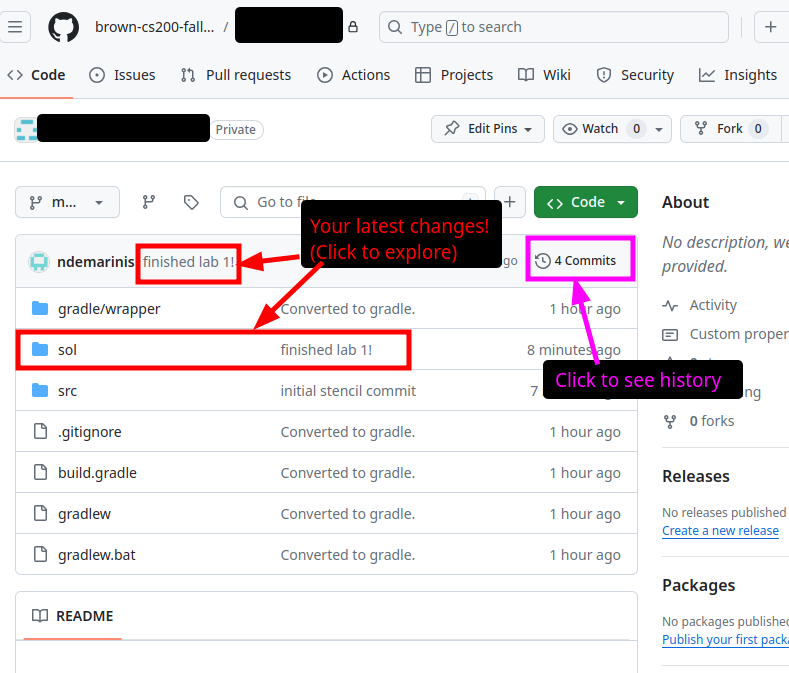
Now that you can see your files on Github, you're done! Congrats on learning your first steps with git! :sunglasses:
:::success
**Git tips for the future**
Now that you've had some practice with git's core features, there's some shortcuts you should know to make your life easier:
- To quickly add all files at once without typing the names, run: `git add -A`
- The output of `git status` is a good quick reference on how to add/remove files from the set of staged changes--if you need help on this, start there!
For more info on git, see our [Github Guide](https://docs.cs200.io/s/github-guide)!
:::
:::success
**Checkpoint:** Call over a TA to check your work.
:::
## **💡Applications💡**
- **Collections Frameworks:** Balanced search trees power structures like `TreeSet` and `TreeMap`, enabling fast lookups, inserts, and deletions in real-world Java libraries.
- **Algorithmic Challenges:** Recursive tree traversals (in-order, pre-order, post-order) and BST operations are staple problems in coding interviews and competitive programming.
- **Hierarchical Data Modeling:** Trees naturally represent file systems, organizational charts, XML/HTML documents, and other nested data in applications.
- **Robust Testing Practices:** Designing unit tests for edge cases (empty trees, skewed trees) mirrors best practices in industry for ensuring code correctness.
- **Maintainable Code & Docs:** Writing clear interfaces, Javadocs, and using Git for version control are essential skills for collaborative software development and long-term maintenance.
***
_Please let us know if you find any mistakes, inconsistencies, or confusing language in this or any other CS0200 document by filling out the_ [_anonymous feedback form_](https://docs.google.com/forms/d/e/1FAIpQLSdmeYWU8_8v9fizxUs_3Fq6Ddsn8Tmas3tkL63ALA6XaZ5Tuw/viewform)_._