583 views
owned this note
<style>
h3 {
border-bottom: 1px solid #ccc;
}
section {
margin-bottom: 2rem;
padding: 0em 1em;
padding-bottom: 1em;
border-radius: 4px;
background-color: #f7f7f7;
border: 1px solid #ccc;
}
summary {
font-weight: bolder;
}
summary:hover {
text-decoration: underline;
}
.todo {
color: #ff00ff;
border: 2px dashed #ff00ff;
padding: 0em 1em;
border-radius: 5px;
//display: none; // UNCOMMENT TO HIDE TODOs
}
</style>
# Lab 9: LLMs Part 2 (Spring 2026)
This week, we continue building the mystery flight recommendation system and learning another common programming tool: regular expressions. We'll learn how to have more sophisticated interactions with LLMs from within programs.
:::warning
This is our last lab of CS200!
:::
:::info
**Note:** This lab continues from lab 8, and is designed for you to keep the same partner. If you did not complete lab 8, or if you are working with a different partner, you will need to follow different setup instructions (listed below).
:::
# Learning Objectives
- Experience building a program off someone else's codebase
- Learn and practice using regular expressions
- Provide conversation history to an LLM when calling it as a service
# Setup
:::warning
**VPN required**: Similar to last lab, this lab will require you to use the VPN. One member of your team should be able to run your code using the VPN: if one of you done now have the VPN set up, **[follow these instructions](https://docs.cs200.io/sDNWMhXcSPyNWA-YJ8iAkQ?view#Extra-setup-the-Brown-CS-VPN)** to set up the VPN.
*Note: in a lab with 20+ students, only one person should connect to the VPN, so avoid overloading it!*
:::
**If you are completing this lab with the same partner from last time**, there is no separate Github Classroom stencil or setup for this lab. Instead, you should start by doing the following:
1. Open your team's lab folder from lab 8 (or [clone the repo](https://docs.cs200.io/github-guide?both#Cloning-a-repository-by-URL) on your system)
2. When VSCode opens, make sure your environment is set up (you should see `.venv` or similar in the bottom-right corner of VSCode's window, like this:

If you don't see this:
- Check to make sure your VSCode is open with your lab 8 folder at the top-level
- Follow [these instructions](https://docs.cs200.io/s/python-stencil-setup-guide#First-time-setup-for-each-assignmentproject) to set up your environment
3. Continue on to [Getting a Peer submission](#Getting-a-Peer-Submission)
**If you did not complete lab 8, or you are working with a different partner**, please expand the sections below for instructions on how to get started:
<section>
#### If neither you or your partner completed lab 8
<details><summary> Expand for instructions</summary>
1. Go to [Lab 8](https://brown-csci0200.github.io/labs.html) and try to create a repository using the Github Classroom link, as if you were starting that lab normally
:::danger
:sob: **Github Classroom issues**: There is an ongoing issue with Github classroom that is causing errors when creating repositories. If you get an error creating your repo:
- Please refresh the page and retry, and check your email for an invite as usual
- If this fails, please **[fill out this form](https://forms.gle/NEGSPtvsrtgBjU69A)** and a TA can fix your settings. We'll notify you when your repo is ready
- While you're waiting, you should move on to the [VPN setup](https://docs.cs200.io/s/yufqHBSG_#Extra-setup-the-Brown-CS-VPN), which doesn't require any code
When your repo is ready, you should see it on [this page](https://github.com/orgs/brown-cs200-spring2026/repositories).
:::
2. Go [Getting a Peer submission](#Getting-a-Peer-Submission) and download the **backup submission** (step 3) into your repository, and name it `flight_chat.py`. The backup version will play the role of your submission in this lab.
3. In the [Getting a peer submission](#Getting-a-Peer-Submission) section, follow steps 1-2 to download another team's submission. In this lab, you'll contrast the backup submission to the one you download in this step.
4. After you download another group's submission from Peerceptiv, go on to [Setting up the New Code](#Setting-up-the-New-Code)
</details>
</section>
<section>
#### If you completed lab 8 with a different partner
<details><summary> Expand for instructions</summary>
Since you are working with a different partner, we will need create a new git repository for you to both share your code. This looks similar to creating a repo for a normal lab, but has a few extra steps. **Please follow these instructions carefully** to avoid issues!
Here's how to set up your repo:
1. Create a repository using **[this Github classroom link](https://classroom.github.com/a/jvPhEhFg)** as normal, and create a team. Be sure to name your team starting with `lab09`.
:::danger
:sob: **Github Classroom issues**: There is an ongoing issue with Github classroom that is causing errors when creating repositories. If you get an error creating your repo:
- Please refresh the page and retry, and check your email for an invite as usual
- If this fails, please **[fill out this form](https://forms.gle/NEGSPtvsrtgBjU69A)** and a TA can fix your settings. We'll notify you when your repo is ready
- While you're waiting, you should move on to the [VPN setup](https://docs.cs200.io/s/yufqHBSG_#Extra-setup-the-Brown-CS-VPN), which doesn't require any code
When your repo is ready, you should see it on [this page](https://github.com/orgs/brown-cs200-spring2026/repositories).
:::
When you first open your repository's github page, ==your repository will appear blank, like this! **This is normal**==. Specifically, it should look like this:
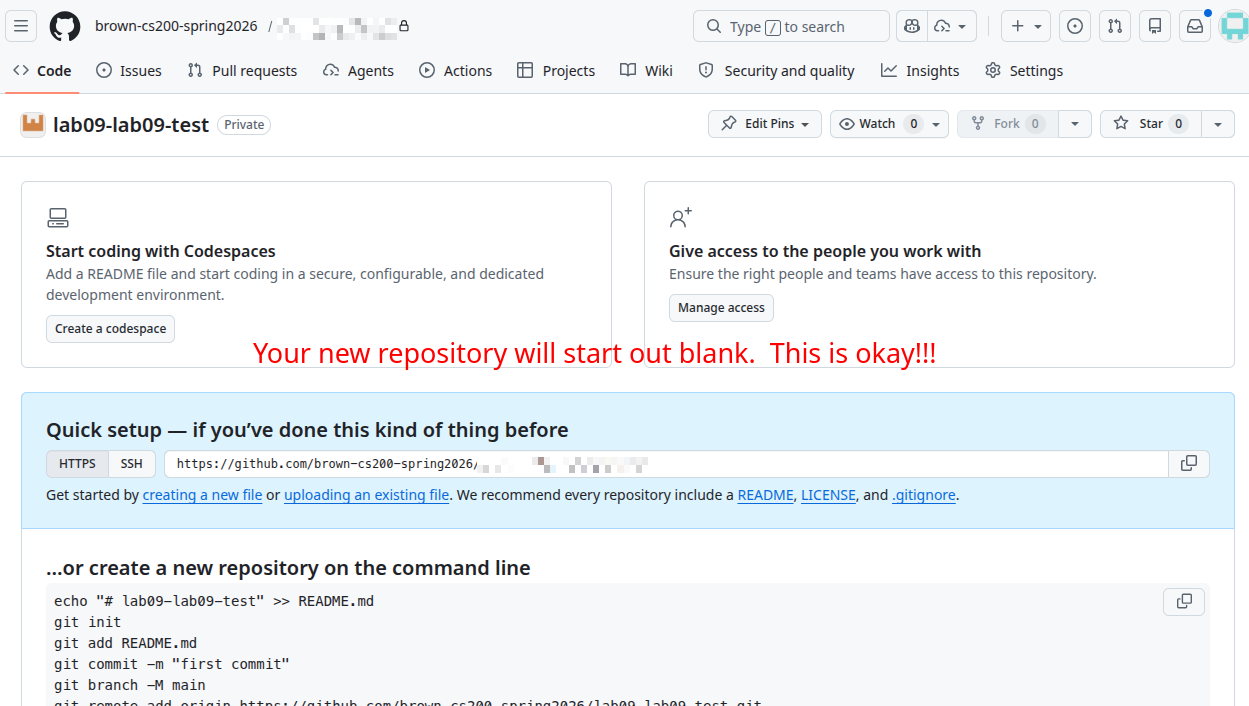
Your new repo is blank because we're going to push your lab 8 code to this repo--the next instructions will show you how. While you work on them, **keep this tab open**, you'll need it later!
3. Next, you and your partner should **choose which of your github repositories you want to start from**. You can pick whichever you like--the repo you start from just needs to be on one of your computers.
4. Once you've decided the partner who has the code should **open VSCode to their lab08 folder**.
5. Make sure that VSCode shows the name of your lab08 repo (e.g., `lab08-youroldteam`) in the top-left. If it doesn't, re-open VSCode to that folder by selecting **File > Open Folder**
6. If you had any changes pending in your repository, commit and push them before continuing.
6. Open a terminal in VSCode and run the following command:
```
git remote -v
```
This command lists out the "remote" location for your repo, which is where it's stored on github. You should see two lines that list URLs for your repository:

3. **Look at the first part of you repository URL**, which will determine how we proceed next:
- If your repo URL starts with `http://`, you will need the **HTTPS** link in the next step
- If your repo URL starts with `git@github.com`, you will need the **SSH** link in the next step
4. Go back to the Github page for your new repo and do the following:
- In the blue box, select the **HTTPS** or **SSH** (whichever you picked in the previous step. **If you're unsure, pick HTTPS**)
- Click **Copy**
5. Go back to your terminal in your lab 8 repo, and then run the following commands:
```shell
git remote rm origin
git remote add origin <paste URL your copied, without the brackets>
git push origin main
```
These commands update the "remote" on your lab 8 repo, which is a location where you can push code. In this case, the new remote is your lab 9 repo (where both you and your new partner have access, so you can both use the code!)
6. Refresh your github page. You should now see your lab 8 code in your new repo! Yay!
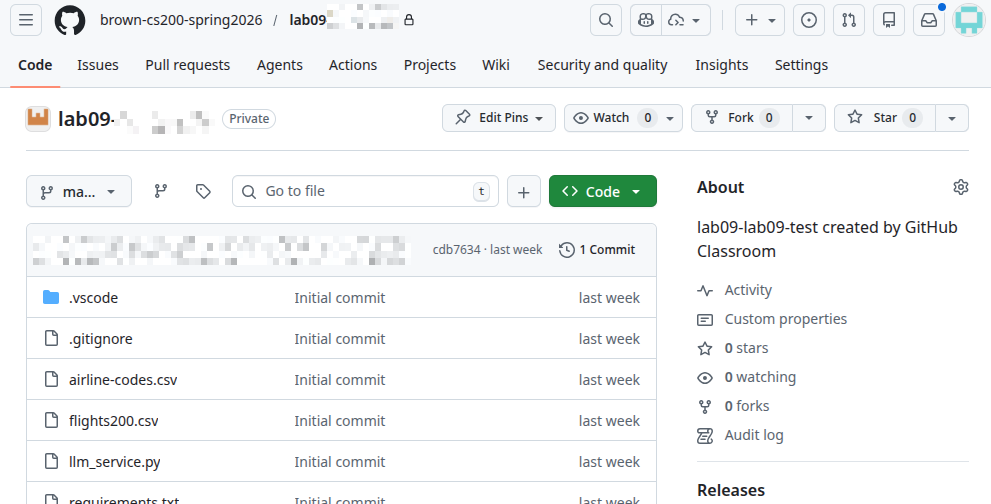
4. Your new repo should now be set up! To continue, go on to [Setting up the New Code](#Setting-up-the-New-Code) in your current VSCode window
- If your partner wants to clone the repo on their computer, they will need to [**clone the repo**](https://docs.cs200.io/github-guide?both#Cloning-a-repository-by-URL) and then [**set up an environment**](https://docs.cs200.io/github-guide?both#Cloning-a-repository-by-URL) as if starting a new lab
</section>
### Getting a Peer Submission
1. The group member who submitted last week's code (or one member if everyone submitted) should go to the [Peerceptiv assignment](https://app.peerceptiv.com/course/22e09961-9339-4ac2-921f-cd9ef380f2b3/assignment/bb583aff-7b34-48a9-9159-565692b68d8c/dashboard) and start a review. Peerceptiv should provide another group's submission—download it and share it with the group.
If successful, skip to [Setting up the New Code](#Setting-up-the-New-Code).
2. If step 1 fails, another group member should try starting a review. Peerceptiv should allow them to access a submission even if they didn't submit previously. Download and share it.
Repeat this process until a submission is retrieved or all members have tried. If successful, continue to [Setting up the New Code](#Setting-up-the-New-Code).
3. If no valid submission is available via Peerceptiv, use the [backup submission](https://drive.google.com/file/d/1wkZ8nqqMwx9S6UdaBin2d3zK6wMGI9Qt/view?usp=drive_link) provided. In this case, submit your review via the designated Google Form instead of Peerceptiv.
**Don't answer the review questions yet!** You'll complete those at the [end of the lab](#Task-12).
### Setting up the New Code
In your Lab 8 directory:
1. Rename your existing `flight_chat.py` → `my_lab8_flight_chat.py`
2. Create two new empty files: `flight_chat.py` and `lab8_flight_chat.py`
3. Copy the contents of the downloaded submission code into both new files (`flight_chat.py` and `lab8_flight_chat.py`)
:::info
**Why two copies?** `lab8_flight_chat.py` preserves the original received code for comparison and review at the end of the lab, while `flight_chat.py` is the working copy you'll modify throughout this lab.
:::
**Note:** If the code was copied from a PDF, extra newlines may have been added. Double-check for syntax errors before proceeding.
# Review the code that you received
</details>
<section>
### Task 1
Add initial notes as comments at the bottom of the code you received.
Does it seem broken out well into helpers, well commented, with clear names on functions and variables? How are their LLM prompts? Are there parts of the code that do not work, especially with edge cases?
(You'll provide an actual review at the end of the lab.)
</section>
<section>
### Task 2
Get the code you received working through city selection from the first part (you can skip the cleanup for now) before moving on. If you inherited code that hasn't finished this part, but your code did, feel free to copy the solution over.
:::info
Default to using the non-JSON version of the `get_date()` helper method for this lab.
:::
:::warning
**VPN Connection Required**
For the [Tunnelblick](https://cs.brown.edu/about/system/connecting/openvpn/) connection, use the `fmlast_browncs` VPN profile. If you can see http://perfmon.cs.brown.edu/, you are all set!
**Important:** Only one group member should connect to the VPN at a time. Share that person's screen or work together on their laptop.
:::
</section>
# Selecting flights
Now we want to augment the program to return a candidate flight to the user.
<section>
### Task 3
Search the provided `flights200.csv` file (from last week's stencil) for a flight that matches the date and city provided by a user. Select any matching flight at random. You can just print an informative message if no flight exists. For now, print just the flight code (like `"ZA453"`) from the csv file.
</section>
We're intentionally not telling you how to do this. Use a combination of your programming knowledge and a code-generation tool to get this working. Consider developing a plan for this, then deciding which plan elements you could reasonably get the code-generator to do for you. If you aren't sure how to proceed, the TAs will ask to see your plan-in-progress.
:::success
**Checkpoint:** Call over a TA to check your work
:::
## Describing available flights
In the [original sample interaction](https://docs.cs200.io/I74H-Y0uTgOoxl0eQf8sbw?view#First-the-big-picture), the following message summarized a flight to the user as follows:
```
How about Zinnia Air flight 726 to New York?
```
The flight that you retrieved from the csv file didn't show the name of the airline. Instead, it showed a two-letter airline code followed by the flight number. To generate this message, we need to extract the airline code and look up the real airline name from the flight data. Your first task is to extract the airline code.
# Regex
:::info
This component does not require the VPN—work together but don't feel the need to work on the same computer!
:::
Regular expressions are powerful tools for pattern matching and extraction. In this section, you'll explore how to leverage regex to dissect structured strings into their meaningful components. As you work through the exercises, you'll see how a simple regex can evolve into a critical component of larger tasks—like parsing flight information from a string.
**Complete Tasks 4–8 to learn regex basics, then apply what you've learned in Task 9.**
<section>
### Task 4
1. Go to [regex101.com](https://regex101.com), which is an awesome site for building and testing regular expressions.
2. Put the following string into the "Test String" box:
```
The cat in the hat was late, and that at the CSCI0200 lecture with bat9.
```
3. Enter the pattern string `cat` into the "Regular expression" box, like this:

4. At this point, your regex101 window should look like this (see annotations for details):

5. Notice that the _cat_ string is highlighted in the text—**this shows what part of the text matched your regex**! If you don't see `cat` highlighted, make sure your regex101 window looks like the figure above (make sure "Python" and "Match" are checked at the left). If you still have issues, call over a TA for help.
</section>
Now that you've seen how a fixed pattern like cat is matched, let's advance to using character sets to allow for variation within the pattern.
<section>
### Task 5
Now let's start building up patterns where not all characters are fixed.
Let's say we want to look for every three-letter word containing "at" (e.g., "cat," "bat," "sat," etc.). We can use the pattern:
```
[a-z]at
```
Here, the square brackets `[a-z]` define a set/range of characters (all lowercase letters), immediately followed by `at`. So `[a-z]at` will match exactly three-letter strings ending in "at."
Put this new regex into the site and see what it matches.
</section>
<section>
### Task 6
Now suppose we want to find every word ending in "at," regardless of length (e.g., "at," "bat," "seat," etc.). We can introduce a quantifier—the most common of which is `*`.
```
[a-z]*at
```
The `*` quantifier says "zero or more occurrences of the preceding element." Here, that means "zero or more lowercase letters" followed by at. As a result, this regex will match "at" by itself (because zero letters are allowed before "at") as well as larger words like "seat" or "great."
Put this new regex into the site and see what it matches.
</section>
In Task 6, we introduced the `*` quantifier for flexible matching. However, this sometimes matches too much. In Task 7, we switch to the `+` quantifier to ensure there's at least one character before 'at', providing more control over our matches.
<section>
### Task 7
If we want to exclude "at" so that at least one character appears before "at," we can use `+` instead of `*`:
```
[a-z]+at
```
The `+` quantifier requires "one or more" occurrences of the preceding element. Thus, `[a-z]+at` will not match "at" by itself (because zero letters are not allowed) but will still match words like "cat," "that," or "great."
Even so, it might match more than you intend—for instance, it would match the "lat" in "late." So we sometimes need a way to ensure "at" appears at the end of a word.
</section>
This regex still has an issue: it matches "lat" in "late." To ensure "at" truly appears at the end of a word, add a word boundary `(\b)`. A word boundary forces "at" to end before any non-word character (like punctuation, spaces, or digits), so only full words ending in "at" will match.
<section>
### Task 8
To ensure our match ends exactly at a word boundary, we use `\b`. This prevents characters like digits, underscores, or letters from continuing after "at":
```
[a-z]*at\b
```
- `[a-z]*`: zero or more lowercase letters
- `at`: the literal string "at"
- `\b`: a word boundary (no letters/digits/underscores after)
If we want to avoid matches like "that" or "great", we could add a word boundary to the beginning as well, for a final regex of `\b[a-z]+at\b`.
</section>
# Describing available flights cont.
Having explored various regex techniques for matching different word patterns, we now apply these techniques to a practical problem. Task 9 will use regex to extract components from a flight code and construct a user-friendly flight summary.
<section>
### Task 9
Once a random flight has been selected, use regular expressions to separate the airline code from the flight number. Use the pieces to construct the flight summary message to the user with the following format:
```
How about Zinnia Air flight 726 to New York?
```
The starter file `airline-codes.csv` shows the full name of the airline for each two letter code.
:::info
**Helpful regex symbols:**
- `^` – Marks the start of the string (no partial matches from the middle).
- `[A-Z]{2}` – Matches exactly two uppercase letters (likely your airline code).
- `(\d+)` – Captures one or more digits (the flight number).
- `$` – Marks the end of the string (no extra characters allowed after the digits).
- **Hint:** You might want to look into [re.MatchObject.group()](https://www.geeksforgeeks.org/python/re-matchobject-group-function-in-python-regex/)!
:::
:::warning
You might have to edit your code from [Task 3](#Task-3) to get the destination city!
:::
</section>
:::success
**Checkpoint:** Call over a TA to check your work
:::
# Finer-grained control of LLM prompts
While doing part 1, some of you may have found that you need a lot of subtleties in the date-conversion prompt. In practice, we refine answers by having conversations with LLMs, not just by sending single messages. When you call out to an LLM through a url, however (rather than in a back and forth conversation), all that prior conversation gets lost.
Accordingly, the parameters when calling an LLM via a function allow you to provide some prompt/response history on which the LLM can base an answer.
Look in the `llm_service.py` file. You'll see the following function:
```python
def get_date_conversion_messages(msg):
return [
{
"role": "user",
"content": msg,
},
]
```
Notice how this function is returning a list? This list represents the message history we want to pass to the LLM. Here's an example with more history:
```python
def get_date_conversion_messages(msg):
return [
{
"role": "system",
"content": "Convert the user's date input to YYYY-MM-DD format. Return only the formatted date, nothing else.",
},
{
"role": "user",
"content": "jan17",
},
{
"role": "assistant",
"content": "2026-01-17",
},
{
"role": "user",
"content": "5/4/23",
},
{
"role": "assistant",
"content": "2023-05-04",
},
{
"role": "user",
"content": msg,
},
]
```
:::info
**Understanding the message roles:**
- `"system"`: Instructions that set the LLM's behavior for the entire conversation. This goes first and tells the LLM *how* to respond.
- `"user"`: Messages from the user (inputs/questions).
- `"assistant"`: Previous responses from the LLM. By including these, you're showing the LLM examples of the output format you want.
The key insight here is that we're "seeding" the conversation with example user inputs and good assistant responses. When the LLM sees `msg` (the actual user input) at the end, it follows the pattern established by the examples.
:::
:::warning
**Important:** The user's actual input (`msg`) must be the **last item** in the list! If you put `msg` anywhere else, the LLM will respond to whatever message comes after it, not to the user's input. This is a common bug that causes the LLM to only output responses matching the last example in your list.
:::
<section>
### Task 10
Edit the `llm_service.py` file to make a copy of the `get_date_conversion_messages` function. In the copy, try adding some chat history in the spirit of what's shown in the handout. Experiment and see if you can find some prompts that fail to convert properly with the original version, but do pass with the one that provides more context.
Our entire goal with this is to have you explore and learn how LLM programming works. There's no specific goal here other than you get some experience with using these tools.
</section>
<section>
### Task 11
Do any cleanup that you feel is necessary on your code, especially if what you inherited wasn't particularly well structured. Again, we're asking you to do this for the experience of working with inherited code, which you'll end up doing if you go on in CS.
[Here](https://drive.google.com/file/d/1y01YAZehPyCRR98FjfEN2vw0m4_KjuHU/view) is an example of a well structured partial solution to this flight system for you to refer to.
</section>
<section>
### Task 12
Go back and add to your answer from the [start of this lab](#Task-1), further reviewing the `lab8_flight_chat.py` code you originally received. Write together and make one submission per group.
Answer the following questions:
1. **How did the code you received compare to your own?**
- 1a. What do you wish you had done differently in your code to make it easier to understand or modify?
- 1b. What do you wish the authors of the code you received had done differently (if anything)?
2. **Compare and contrast the embedded LLM prompts** in the code you received with your own. Did their prompts give you any ideas for making yours more effective or easier to maintain?
3. **What bugs or unexpected behavior did you encounter**—either in the code you received from another group or while working through the rest of this lab? How might you write test cases to catch that kind of issue? Can you give an example?
Only the partner that received a code submission through Peerceptiv should complete the review on [Peerceptiv](https://app.peerceptiv.com/course/685d4fd5-50f2-41a6-a8f5-24507d336f20/assignment/65a7bb50-e6ae-4d78-87c7-1c1028522d1c/dashboard).
If you used the backup code submission in Google Drive, please complete the review using [this Google form](https://docs.google.com/forms/d/e/1FAIpQLSfFyZuKggKmHM2u-YMCUcbu1_Hyna06-azSA85AwBRtUdMh0w/viewform?usp=publish-editor).
</section>
<section>
### Task 13
Finally, please upload your final code to [Gradescope](https://www.gradescope.com/courses/1101102/assignments/6593115). Don't worry, we aren't grading it. This is a relatively new lab, and the professors want to be able to see what students produced (to see what modifications we might want to make for future semesters).
Only one person needs to upload without adding any names.
</section>
:::success
**Checkpoint:** Congratulations, you've completed this week's lab! (All labs in fact!) Check in with a TA, and then you can go home. Nice job!
:::
## **💡Applications💡**
- **Natural Language Parsing:** LLM-based prompts let you convert free-form user input (dates, locations, preferences) into structured formats without hand-coding every rule.
- **Pattern Extraction:** Regular expressions power log parsing, data validation, and extracting structured fields (like flight codes) from arbitrary strings.
- **Contextual AI Prompts:** Supplying conversation history to an LLM improves reliability by teaching the model your desired format through examples.
- **Fuzzy Matching:** String-difference libraries (e.g., `difflib`) enable "did you mean?" features for typos, autocompletion, and search suggestions.
- **JSON Data Exchange:** JSON remains the lingua franca for passing structured data between services, scripts, and front-end/back-end components.
***
_Please let us know if you find any mistakes, inconsistencies, or confusing language in this or any other CS200 document by filling out the_ [_anonymous feedback form_](https://forms.gle/eVKnVzRa1zG365zZA)_._