886 views
owned this note
<style>
h3 {
border-bottom: 1px solid #ccc;
}
section {
margin-bottom: 2rem;
padding: 0em 1em;
padding-bottom: 1em;
border-radius: 4px;
background-color: #f7f7f7;
border: 1px solid #ccc;
}
summary {
font-weight: bolder;
}
summary:hover {
text-decoration: underline;
}
.todo {
color: #ff00ff;
border: 2px dashed #ff00ff;
padding: 0em 1em;
border-radius: 5px;
//display: none; // UNCOMMENT TO HIDE TODOs
}
</style>
# Lab 4: Java I/O (Spring 2025)
## Learning Objectives
In this lab, you will:
- learn to read from and write to files, buffers, and streams in Java
- learn while loops (if you haven’t already seen them)
- get some practice with try/catch and exceptions
**Where does this fit into the course?** Basic input/output skills are essential in programming. Later assignments will have you work more with input/output to help you practice beyond this lab!
## Setup
Before beginning this assignment, clone the source code from GitHub to make your personal repository for this lab. Here is the **[GitHub Classroom link](https://classroom.github.com/a/2aKP9NZ6)**. **Be sure to follow the [Java Stencil setup guide](https://docs.cs200.io/s/java-stencil-setup-guide)** for instructions on how to do this.
Refer to the [GitHub guide](https://docs.cs200.io/s/github-guide) if you are unfamiliar with it. Make sure you push your code regularly to back it up!
## Intro
Josh Hutcherson just won a brand new iPod and wants to show off his remixes of Whistle by Flo Rida. When he starts downloading songs to it, however, he’s met with his worst nightmare: an exception that stops his efforts! Hoping to download the newest and coolest pop anthems before class, Josh puts the problem solving skills he’s acquired from CS200 to use: it’s time to dive into the Java IO Library!
:::warning
### Super important: before you start
In this lab, you will work with files and paths. In order to make sure your program can locate files properly, it's very important that your IntelliJ is opened correctly on your stencil directory. If you don't have this set up properly, nothing else in the lab will work!
To check your IntelliJ:
1. In the sidebar that lists your files, **look at the top-level folder**, like the figure below. This folder **MUST** be the **same as your stencil directory**--eg. `lab04-stencil-yourusername` (the one you cloned with `git clone`).
2. If your top-level folder is different, **Close IntelliJ** and **re-open it at your stencil directory**. For instructions on how to do this, see the [Java Stencil setup guide](https://docs.cs200.io/s/java-stencil-setup-guide). Make sure the folder is correct before you continue.

Once you have confirmed you have IntelliJ opened to the correct folder, you're okay to continue with the rest of the lab! If you have issues, please ask a TA and we can help.
:::
## The Java IO Library
The Java Application Program Interface (API) is the set of interfaces of the Java libraries. In this lab, you will learn about the `java.io` package, a standard Java library. IO stands for input/output, and this library handles input and output for Java programs. (This lab is self-contained, but for reference, here is the `java.io` [package summary](https://docs.oracle.com/en/java/javase/17/docs/api/java.base/java/io/package-summary.html).)
:::info
<details><summary><b>Note about reading Java's documentation</b></summary>
If you look at the documentation, you will notice that there are **_lots_** _and_ **_lots_** of classes in this library. Don’t spend too much time trying to understand everything in this package in detail right now; learning to read library documentation takes practice. But do come back to this later, because this particular skill (which requires an investment up front) may save you more time than any other in your future computer science endeavors. You will also need the `java.io` library in your assignments in CSCI0200.
:::
</details>
In today’s lab, you will learn about program arguments and how to use the `java.io` library to read from and write to files and their cousins (buffers and streams). You will be interacting with the following seven `java.io` classes: `FileReader`, `FileWriter`, `BufferedReader, BufferedWriter`, `InputStreamReader`, `OutputStreamReader`, and `File`. Of primary interest to us will be the methods for working with these classes.
### Calling Programs with Arguments
Much like how functions and methods take arguments as input, **programs can also take arguments as input when you run them**. Programs accept inputs through the `main` method’s argument, `String[] args`, which declares that your program takes as input an array of `String`s called `args`. It is convention that any input to the program is passed in the form of this `String `array. Before this lab, the programs you have written in this class haven’t taken in any arguments, so the `args` array has always been empty (and we have always ignored it).
The `args` array refers to any strings that might be handed to a program before it is run. What sort of input might we want to give to a program when running it? We might provide the name of a data file, a number saying how many list elements to expect, or a word like “array” or “link” indicating which list data structure to use for a particular run of a program. While you can also provide such inputs in constructors and the like, sometimes you need to let users who don’t have access to the code (as you do) give arguments. That’s what we’re enabling here.
:::info
Here is an example of a class, `PrintArgs`, with only a single method `main`, that simply prints its program arguments.
```java
public class PrintArgs {
public static void main(String[] args) {
for (String arg : args) {
System.out.println(arg);
}
}
}
```
:::
Our first goal is to understand how you would run this program with arguments.
## Background: What happens when you run a Java program
When you use the Run button in IntelliJ, Java checks your program for syntax errors, converts it to a form that it can run, then runs the converted version. The act of converting the code is called _compiling_.
It is possible to compile your code directly, rather than through IntelliJ. This can be done by using two programs on our computer: `javac` (error checker and compiler) and `java` (runs the compiled program). At the most basic level, these commands would be run through a _terminal_, similarly to how you run your git commands. Most of the time, however, IntelliJ automates this step for us, but it's still important to know how to interact with the terminal.
Running a program in a terminal is referred to as “running from the command line.” If we were to compile and then run `PrintArgs` from the command-line with the arguments `hi`, `there`, and `everybody`, it would look something like:
```
you@some-terminal:~/CS200$ java PrintArgs hi there everybody
```
:::info
**Note**: When running, **Java reads the arguments in as** `String`**s**, even though we don’t input them with quotations. In the terminal, just about everything is treated as a string by default.
The `you@some-terminal:~/CS200$` is an example of the terminal's *prompt*, which is what it prints each time it asks you to input a command--yours will look slightly different, depending on your system.
:::
With the input `hi there everybody`, the values of the the 0th, 1st, and 2nd strings in the `args` array are set to the strings `"hi"`, `"there"`, and `"everybody"`, respectively. There is no need to include commas. Hence, when we run the program, we would see these words printed out one after another as seen below.
```
hi <------ args[0]
there <------ args[1]
everybody <------ args[2]
```
### Task 1: Running a program with arguments
You can supply arguments directly through Intellij when running a program. We'll try this out using `PrintArgs.java`, which is a program that reads its arguments like the example above.
To do this:
1. Open up the file `sol/PrintArgs.java`
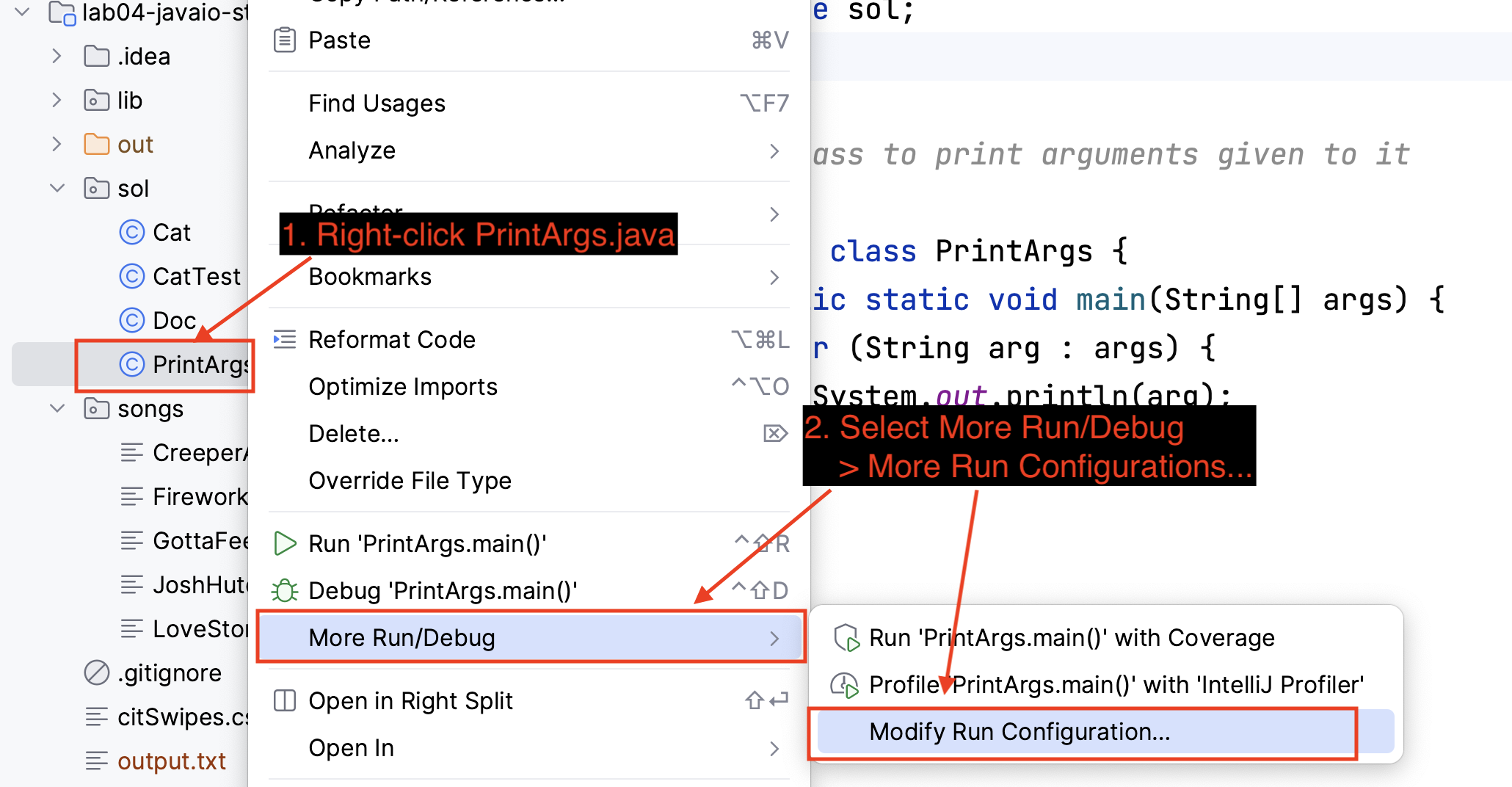
2. In the sidebar on the left, **right-click (or Control+Click on a Mac) `PrintArgs.java`** and select **More Run/Debug** > **Modify Run Configuration...**, as shown in the figure:
3. In the window that pops up, **fill in some arguments** in the box highlighed in red in the figure below (eg. `hi there everybody`)--this is what will be passed to your program on startup!

4. Take a moment to look at the other boxes in the figure--these are the other crucial parameters IntelliJ uses when running your program:
- `sol.PrintArgs`: Is the name of the class to run. This is how IntelliJ knows what program to run: the class listed here must have a `main`function (eg. `public static void main(String[] args)` for Java to run it as the start of your program (in our case, it does)
- The **working directory** is the folder on your computer where IntelliJ will run the program. This should be the same folder as your stencil folder (eg. `lab04-stencil-yourusername`). The working directory will be our "reference point" for how we write file paths later in the lab
5. Click **OK** to save your run configuration.
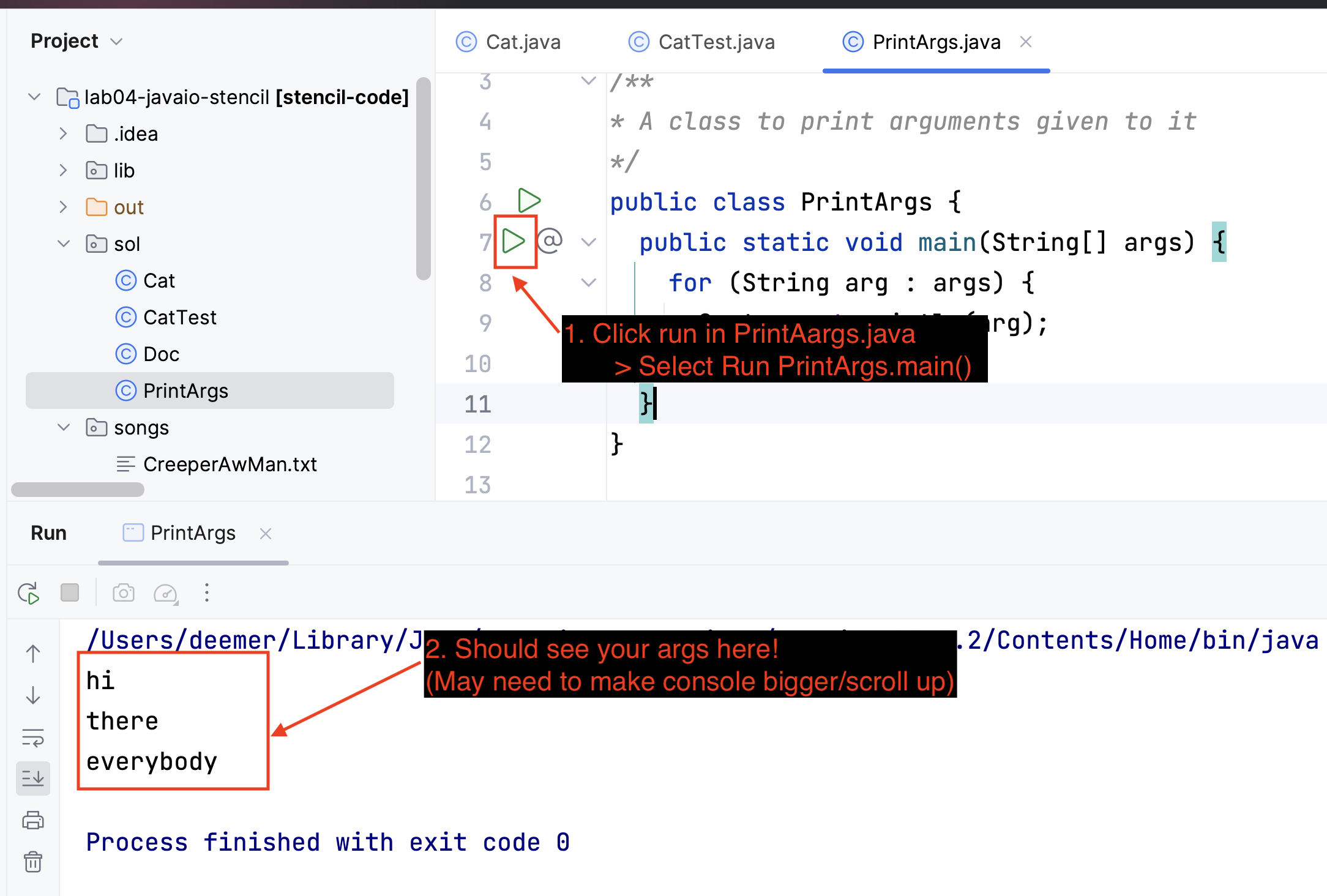
6. Back in `PrintArgs.java`, click the run button on the `main` function and select **Run `PrintArgs.main()`**.
7. As the program runs, you should see your arguments printed in the output window, one per line, as in the figure below. **Take a moment to look back at the program and see how this code matches up with the output.**
:::warning
**If you have issues running PrintArgs** try the Troubleshooting steps listed [here](https://docs.cs200.io/s/java-stencil-setup-guide#Troubleshooting). In particular, you may need to set your Java SDK and/or invalidate your caches.
:::
<!-- :::info
<details><summary><b><i>Note:</i> If you're having trouble</b></summary>
If you’re not able to find edit configurations or add program arguments when you look at `Edit Configurations`:Run your program by clicking the green arrow next to a `main` method to force IntelliJ to create a configuration for you. For example, if you run the main method in the `PrintArgs` class, when you open `Edit Configurations` again you should see the configurations window that lets you input arguments.
:::
</details> -->
<!--
### Task 1
Open the `PrintArgs` class in the provided lab files and try running it in Intellij with different arguments.
:::info
<details><summary><b><i>Note:</i> Unable to run the <code>PrintArgs</code> class?</b></summary>
Unable to run the `PrintArgs` class? Try the following:
1. Create an out folder (on the same level as the sol and src folder)
2. Copy the full path to that folder
3. Paste the full path into the compiler output field in File > Project structure
4. File > invalidate caches & restart (last step is important)
:::
</details> -->
## Readers, Writers, and Buffers
Now, let’s work towards some specific tasks. We’re going to have you work on two tasks: the first will copy the lines of one file over to a new file, while the second will keep reading in words from a user in the terminal and write them all out to a file.
To do these, you will need to know:
- how to read a line from a file
- how to keep reading lines until the file ends
- how to read input from a user through the terminal
- how to write to files
- how to handle exceptions that might arise in the process
Here also are links to the Java documentation that you might need: [FileReader](https://docs.oracle.com/en/java/javase/17/docs/api/java.base/java/io/FileReader.html), [FileWriter](https://docs.oracle.com/en/java/javase/17/docs/api/java.base/java/io/FileWriter.html), [BufferedReader](https://docs.oracle.com/en/java/javase/17/docs/api/java.base/java/io/BufferedReader.html), and [BufferedWriter](https://docs.oracle.com/en/java/javase/17/docs/api/java.base/java/io/BufferedWriter.html) (don’t worry, we’ll guide you through which classes you’re using for which parts of the lab!)
<section>
## Important concept: Handling Exceptions (and `IOException`)
A lot of things can go wrong when working with IO. Methods can easily encounter unexpected input or problems. It is your responsibility as a programmer to handle these exceptions gracefully, and protect the user from unexpected behavior and program crashes.
In Java, exceptions are handled with a `try/catch` block. The `try` block executes first and contains any code that may potentially throw an exception. If an exception is thrown in the `try` block **and** that type of exception is caught in the `catch` block, the `catch` block will execute.
**IOException**: One exception you may come across when working with IO is the `IOException`, which is thrown from many methods that handle input and output. In order to use readers and writers while checking for this exception, you might do something like this:
```java
try {
BufferedReader reader = new BufferedReader(new FileReader("/path/file"));
String line = reader.readLine();
System.out.println(line);
reader.close();
} catch (IOException e) {
System.out.println("Encountered an error: " + e.getMessage());
}
```
This code *catches* the `IOException` and handles it, in this case, by informing the user that the program encountered an error. Note that if in the `try` block, an exception _other_ than an `IOException`, such as an `IllegalArgumentException`, had instead been thrown, the `catch` block would _not_ have caught that exception.
You can take a look at other possible IO exceptions in the `java.io` [package summary](https://docs.oracle.com/en/java/javase/17/docs/api/java.base/java/io/package-summary.html).
</section>
## Concatenate/Copy
Concatenating the contents of multiple files into a new file is a useful programming tool (called `cat` in Linux/MacOS. Here, we’ll build a piece of that program, which copies the lines of one file into a new file. You’ll be working in the `sol/Cat.java` file for this problem.
Reading/writing from/to a file consists of a few basic steps (**Note: This is an overview; you will complete these tasks throughout the lab so feel free to keep reading!**):
- Construct a `FileReader/FileWriter` object with a filename (including its path) as a String argument. A `FileReader` will read from this file and a `FileWriter` will write to this file.
- Construct a `BufferedReader/BufferedWriter` from this `FileReader/FileWriter`.
- Read from/write to the file using the `BufferedReader / BufferedWriter`.
- Close the reader/writer (this tells Java you are done working with the file).
Here’s an example of opening a file for reading:
```java
FileReader fReader = new FileReader("songs/FUNsong.txt");
```
where `"songs/FUNsong.txt"` is the path to the file, relative to the top-level folder of your project--for details on what this means, see the next section.
<section>
### Important background: file paths
There are many different ways to write paths to files. Often, we write paths in *relative* form, which gives the path to a file when starting from a certain directory--usually your program's current **working directory**. The working directory is the current folder where your program will be run--if you were running the program in your terminal, it should be the folder where your terminal prompt is located.
In IntelliJ, your current working directory is the folder at the top-level of your IntelliJ project (in this case, it should be `lab04-javaio-yourusername`). To check this, do the following:
1. **Look at the files in the sidebar on the left-side of your IntelliJ window.** The top-level folder should be the folder for this stencil (ie, `lab04-javaio-yourusername`). This is your working directory!
2. **If your working directory doesn't match your stencil folder**, close IntelliJ and reopen it on your lab folder. For instructions, see the [Java Stencil setup guide](https://docs.cs200.io/s/java-stencil-setup-guide).
Once you know your working directory is set correctly, you can write paths assuming that your working directory is the starting point. To see what we mean, you can ask IntelliJ to give you examples, like this:
1. Find the file you want to use in IntelliJ
2. Right click on the file and select **"Copy path**"

3. In the box that pops up, select **Path from Repository Root** (which is the top-level dir of your git repo, and our project's working folder)
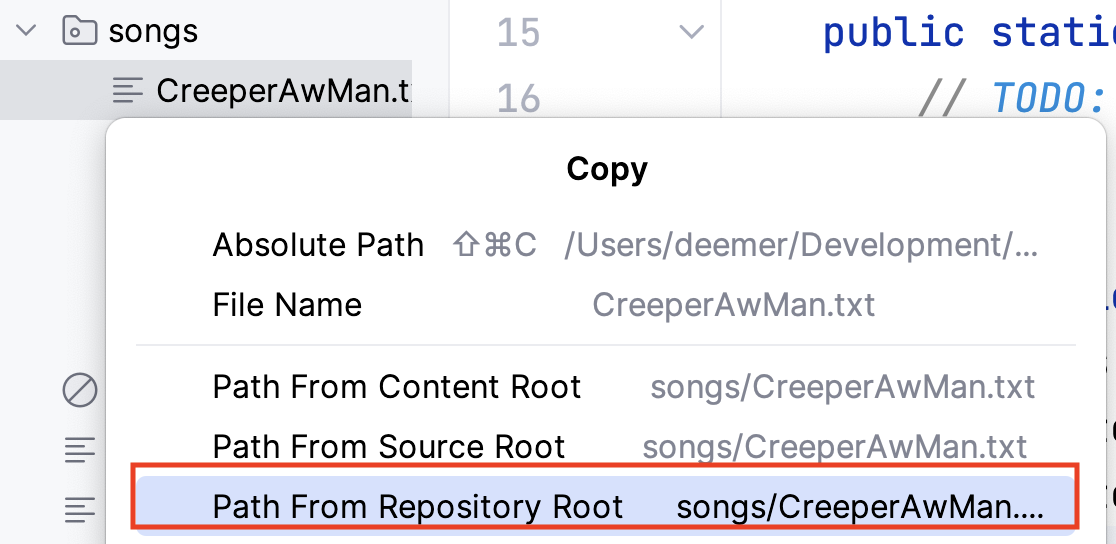
4. The path is now in your clipboard! It should be of the form `songs/SomeName.txt`. Paste it in where you need it.
</section>
</details>
`BufferedReader`s manipulate data in chunks for performance reasons. We create these from `FileReader`s:
BufferedReader bReader = new BufferedReader(fReader);
:::info
<details><summary><b><i>Note:</i> More Details on Buffers (Optional)</b></summary>
When you read and write data, you are reading from and writing to computer memory, calling on the underlying OS directly to manage this memory. This is computationally expensive. Buffering speeds up the transfer of data by limiting the number of calls to these expensive computations.
A buffer acts as a temporary data store so that data can be read or written in batches from the buffer rather than the underlying data stream. Essentially, rather than reading or writing every single piece of data from the data stream to another part of memory individually, we can store larger chunks of it in a buffer, and perform calls to the OS in bulk.
A buffered input stream reads input into an internal array, refilling the buffer when it is empty. A buffered output stream similarly writes data to a buffer, then moves the data to its desired location in one go: this process is called _flushing_.
For example, if you are writing to a file, the writer will not write each individual line to the file. Instead, it will wait until many lines are waiting to be written and, at that point, write all of those lines to the file at once.
:::
</details>
### Reading a file line-by-line
Once you have a `BufferedReader`, you read a file line-by-line as follows:
```java
// read the first line
String line = bReader.readLine();
// as long as the line isn't empty
while (line != null) {
// do whatever you want with the line (here, we're printing it)
System.out.println(line);
// get the next line from the file
line = bReader.readLine();
}
// close the file when we're done using it (so other programs could use it)
bReader.close();
```
:::info
<details><summary><b>What is <code>while</code> and how does it work?</b></summary>
So far in class we have worked with `for` loops, which are used for repeating a computation a predetermined number of times (say once per element in a list). Sometimes, we need to repeat a computation but we don’t know how many times we need to repeat it upfront. We can, however, recognize when we are done repeating the computation. `while` loops are for the latter situation. The general pattern is:
```java
while (<not yet finished with, repeats>) {
// do the computation
// advance to the next item
}
// do after done with repetitions
```
Compare this to the sample code: we have a computation to repeat as long as there are more lines in the file. We don’t know how long the file is up front, so we can’t use a `for` loop. Instead, we keep reading lines (getting the next data) and printing them (the computation to repeat) as long as we haven’t run out of lines (which is signaled by the line contents being `null`.) As a general rule, use `for` loops when you know up front how many repetitions are needed and `while` when you do not.
:::
</details>
### Task 2
In the `Cat` class in the stencil, fill in the `cat` method so that it will read in and print out (as in the above example) the contents of the given `BufferedReader`. Ignore the `BufferedWriter` for now.
### Task 3
Edit the `main` method in `Cat` to create both a `FileReader` and its corresponding `BufferedReader`. Pass the `BufferedReader` to the `cat` method. Use `null` as the second argument to `cat` (for now).
:::info
<details><summary><b>Hint:</b> Use the main method's <code>args</code></summary>
`args` is the array of Strings that will store your inputted program argumnts from Task 1's Run Configuration gray box, which you can then use as a parameter of the `main` method.
For example, if you input `songs/CreeperAwMan.txt dummy` into your Program Arguments, `args[0]` will be the String "songs/CreeperAwMan.txt"
So what should you pass through to create your `FileReader(___)`?
:::
### Task 4
Make sure you have this much working by running your program (using the IntelliJ Run Configuration) with one of the files in the `songs` directory of the stencil as input (use some string like “dummy” for the second input for now).
:::info
<details><summary><b><i>Note:</i> Encoutering a <code>FileNotFoundException</code>?</b></summary>
If you’re having trouble finding the files (i.e. getting a `FileNotFoundException`), try using the **absolute path**. This is a path that starts with `/` (MacOS/Linux) or `C:\` (or some other letter, Windows). You can reference the gray box from earlier titled **"Important background: file paths"** to find the absolute path of your file. Additionally, make sure your inputs do not have quotation marks, and they should only be separated by a space.
:::
</details>
## Writing to File
Now that you can read the contents of a file, let’s write those contents out to another file. Similar to `FileReader` and `BufferedReader`, we use analogous classes `FileWriter` and `BufferedWriter`.
```java
FileWriter fWriter = new FileWriter("file.txt")
BufferedWriter bWriter = new BufferedWriter(fWriter);
```
The `write` method of a `BufferedWriter` writes to the file:
```java
bWriter.write("I am writing to a file!");
// you can write many things here
// when you are done writing, include the following two lines to clean up
bWriter.flush();
bWriter.close();
```
### Task 5
Modify your `cat` method to write each read-in line to the `BufferedOutput` file, rather than to the screen (as `System.out.println` does).
### Task 6
Modify the `main` method in `Cat` to create a `FileWriter` and `BufferedWriter` from the second command-line argument, passing those to the `cat` method (instead of the `null` that we used earlier).
### Task 7
Try the program again, this time providing the name of the file to write to as well as the file to read from (be sure to use a new filename like `songs/Output.txt`, or else you’ll irreversibly overwrite existing song files) in the Run Configuration. This means replacing the “dummy” from the reading part with an actual filename. Look at the content of the output file to make sure you’re seeing the output that you expect.
:::info
<details><summary><b><i>Note:</i> Lines running together?</b></summary>
If the lines in your output file have all run together, rather than each input line starting on a new output line, insert a call to your `BufferedWriter`’s `newLine()` method after each `write` command or add a `\n` to the end of the String you’re writing.
:::
</details>
### Task 8
We have provided you a test class to test your `cat` method; be sure to use it to ensure that your method works! **Fill in the paths with files that you test with.**
We also provided sample text files of some throwback party anthems for you to test with (in the **songs** folder).
:::success
**Checkpoint!** Call over a TA to check your work.
:::
## Handling Exceptions
Various things can go wrong when reading files, such as trying to read from files that don’t exist (maybe due to a type in the filename) or trying to continue reading after the file has run out of lines. Let’s practice `try/catch` blocks by checking for “file not found” errors within our `cat` program.
If you give the `FileReader` constructor a path/filename that doesn't exist, Java will throw a `FileNotFoundException`.
### Task 9
Try running your `Cat/main` program with an invalid filename in the first argument. Observe the exception.
Let’s use a `try/catch` block to provide a more polite error message to a user. Specifically:
### Task 10
In `Cat`’s `main` method, put the call to the `FileReader` constructor in a `try` block. The corresponding `catch` should check whether a `FileNotFoundException` was thrown. If so, `main` should print out a message that says:
"I'm sorry, but I can't find file <the input filename>"
Look back at [this section](https://docs.cs200.io/FlranUkeTAu2TacH73reUA#Handling-IO-Exceptions) of the lab to see how to do this.
:::info
<details><summary><b><i>Note:</i> <code>BufferedReader</code> can’t resolve the <code>FileReader</code> name?</b></summary>
If you declare and initialize the FileReader inside of the scope of the try block, that variable only exists inside the block. Try to initialize the FileReader to null outside of the try block:
```java
FileReader myReader = null;
try {
myReader = new FileReader(...
. . .
```
To exit the main method after receiving an invalid read file name, simply make an empty `return` call (the main method has a `void` return type!)
:::
</details>
## Fun With Words
Now, let’s go beyond working with files and switch to working with user input: we want to let users type in a sequence of words in the terminal or console, and we’ll write out the entire sequence to a file. For this problem, we’ll work in the `Doc` class in the stencil.
In class, we have used `System.out` to print to the console or terminal window. Java has an analogous `System.in` for reading in user input. We can use `System.in` (rather than a `FileReader`) to create a `BufferedReader`, then proceed as we did with the `cat` program. Here’s how to set up a `BufferedReader` from user input:
BufferedReader reader = new BufferedReader(new InputStreamReader(System.in));
### Task 11
Complete the `toDocument` method inside of the `Doc` class, that repeatedly prompts the user for a word from the console, and writes those words to a file, with a space separating each word, until the input is null (at which point `toDocument` should just close the file). The code for this will look similar to what you did in the `Cat` class, so this is really just giving you a chance to really understand that code and apply the pattern again to a new problem.
:::info
<details><summary><b><i>Example:</i> Task 11</b></summary>
The interaction in the console would look something like:
```
Please give me a word (Ctrl+D/Cmd+D to quit):
I
Please give me another word (Ctrl+D/Cmd+D to quit):
love
Please give me another word (Ctrl+D/Cmd+D to quit):
Java
Please give me another word (Ctrl+D/Cmd+D to quit):
I/O!
Please give me another word (Ctrl+D/Cmd+D to quit):
```
The corresponding output file would contain:
```
I love Java IO!
```
:::
</details>
It is OK to have an extra space at the end of this file.
### Task 12
Fill in the `main` method in the `Doc` class, which takes in an argument with the path of the file to write to. `main` should create an appropriate writer (which writes to the file that was specified) and pass that to `toDocument`.
### Task 13
Try out your program. When you are ready to stop giving new words, you have to communicate this to Java:
- On Windows, type Ctrl+D (Cmd+D on Mac). Java converts `Ctrl-D` to `null`. On some systems, IntelliJ uses Ctrl+D as a debugging signal. In that case, use Ctrl+Z+Enter.
:::info
<details><summary><b><i>Note:</i> More on IO Exceptions</b></summary>
Whenever we open files while programming, we have to make sure to close them. If we don’t, and another program tries to work with the same program, conflicts can arise that corrupt file contents. What happens, however, if we get an exception that halts our program before we get to close the files?
Because this is a real issue in practice, Java provides an alternative form of `try` that closes open files should an exception be thrown. If you want to understand more, read the next note
:::
</details>
:::info
<details><summary><b><i>Note:</i> <code>try</code>-with-resources</b></summary>
Java’s special type of `try` statement is called [`try`-with-resources](https://docs.oracle.com/javase/tutorial/essential/exceptions/tryResourceClose.html). From the documentation, “a resource is an object that must be closed after the program is finished with it” (such as a `BufferedReader`). The `try`-with-resources statement ensures that any resource given to it will be closed at the end of the statement. So we can sleep soundly knowing that our reader will be closed when we are finished.
The following code demonstrates how to use `try`-with-resources. You can also see this in practice in the `CatTest.java` file!
```java
try (BufferedReader reader = new BufferedReader(new FileReader("/path/file"))) {
String line = reader.readLine();
System.out.println(line);
} catch (IOException e) {
System.out.println("Encountered an error: " + e.getMessage());
}
```
By supplying a `BufferedReader` as an argument to `try`, Java will automatically close it at the end of the statement. Furthermore, multiple resources can be supplied to a `try` statement, and all of them will be closed! In order to supply two resources to a `try`-with-resources, just separate the declarations with semicolons.
:::
</details>
:::success
**Checkpoint!** Call over a TA to check your work.
:::
## More Practice with While Loops (Optional)
While loops are common for tasks that involve user input or an unpredictable number of iterations. If you are new to `while` loops and want more practice, try writing the following programs for practice (you can create a new `WhilePractice.java` class for this):
### Task 14
Write a program that prints all of the elements in an array that come before the first negative number. We’ve gotten you started with the following code:
```java
public void posPrefix() {
int[] theArr = {5, 6, 2, -1, 4};
int i = 0;
while (theArr[i] > 0) {
// finish the code here
}
}
```
### Task 15
A theater uses an array of booleans to track which seats have been reserved for a performance. If `seatsArray[i]` is true, then the seat is reserved, otherwise it is free. Write a method `numFree` that takes an array index and returns the number of consecutive free seats starting from the given index (don’t worry about free seats before the index).
## Just For Fun: CSV Parsing (Optional)
If you finish early, or later want to know how to apply what we’ve learned to read CSV files, look at the following optional materials.
### CSV Files
CSV stands for comma-separated value. A CSV file contains rows of data, each row containing several data points separated by commas. You can think of a CSV as a spreadsheet: each datapoint in a row is the value in one cell of that row.
We’ve provided the CIT elevator logs in the lab04 repo. The swipe data you’ve been given has three columns. The first contains the name of a person who swiped into the upper floors of the CIT on Sunday. The second contains the time they swiped into the elevator to go up, and the third contains the time they swiped into the elevator to go down. These times are stored in a standard CS format called Unix time, meaning they are stored in the number of seconds they occurred after midnight on January 1, 1970. We want you to look for everyone who was in the upper floors of the CIT, on February 16, 2020 at 2:38 PM, or in Unix time, at 1581881945, i.e. everyone who entered before and exited after this timestamp.
The file is clearly too long to look through yourself. You know how to read through a file using a BufferedReader, so finding this datapoint should be manageable, but it might take a while to write. Luckily for you, CSV parsing is an incredibly common task, so there are packages that provide CSV parsers for you. You can just use one of these to quickly parse the dataset!
#### Setting up the Apache CSVParser
To run this project, you’ll need to import the `org.apache.commons:commons-csv:1.0` from maven into your IntelliJ project. To do this, go to `File` → `Project Structure`, select `Modules` on the left sidebar, select the `Dependencies` tab, then click `+`. From there select `Library` and then you may need to select `New Library`, then `From Maven`. Then go ahead and enter `org.apache.commons:commons-csv:1.0` into the search bar and select the option from the dropdown (you may need to click search and then click the dropdown button). Select all four boxes for Transitive Dependencies, Javadocs, Sources and Annotations. After that you can just click through to install! Don’t forget to apply it.
#### Using the Apache CSVParser
In order to parse our CSVs, we’ll be working with the Apache CSVParser. Using a new package can be overwhelming at first, so we’ll walk you through the process of using it. First, you’ll need to import the classes we’ll be using.
### Task 16
Create a class called `SuspectFinder`. At the top, import `org.apache.commons.csv.CSVFormat`, `org.apache.commons.csv.CSVParser`, and `org.apache.commons.csv.CSVRecord`. Create a method called `findSuspects` that takes in a file name and returns a `List<String>` containing the names of anyone in the CIT at the time of the crime.
First, we’ll have to tell the parser what specific format our CSV file is in, since there are multiple different valid formats. We do this through the use of a `CSVFormat` object.
### Task 17
Create a variable `format` of type `CSVFormat` in `findSuspects`.
We want to use the standard CSV format, which is called `RFC4180`. This format is built in as a static field of `CSVFormat`: `CSVFormat.RFC4180`.
However, this isn’t enough for our format. The first row of the CSV you’re using contains the names of each column in the dataset.
This is called a `header`, and needs to be accounted for in our format. Luckily, this is easy in Apache as well. All we’ll have to do is set `format` to
CSVFormat.RFC4180.withHeader().
Now, we’ll need to set up our `CSVParser`. The constructor of `CSVParser` takes 2 arguments: a `FileReader` of the file you want
to parse, and the `CSVFormat` object you just created.
### Task 18
Create a variable `parser` of type `CSVParser` in your method.
Now, the `CSVParser` can parse the file into a series of `CSVRecord`s, one for each row, which in turn each act like a list of the `String`s from their row. You can find the documentation for `CSVParser` [here](https://commons.apache.org/proper/commons-csv/apidocs/org/apache/commons/csv/CSVParser.html) and the documentation for `CSVRecord` [here](https://commons.apache.org/proper/commons-csv/apidocs/org/apache/commons/csv/CSVRecord.html).
### Task 19
Finish the method, returning the names of everyone who was in the CIT at the specified time.
***
_Please let us know if you find any mistakes, inconsistencies, or confusing language in this or any other CSCI0200 document by filling out the_ [_anonymous feedback form_](https://docs.google.com/forms/d/e/1FAIpQLSfe9cDwpzv7xCbbevbrAZacuB4MB8yxer8jiK0SK-CQH3RXuQ/viewform?usp=sharing)_._